Augmented reality for your workspace
See where everything on your desk should go
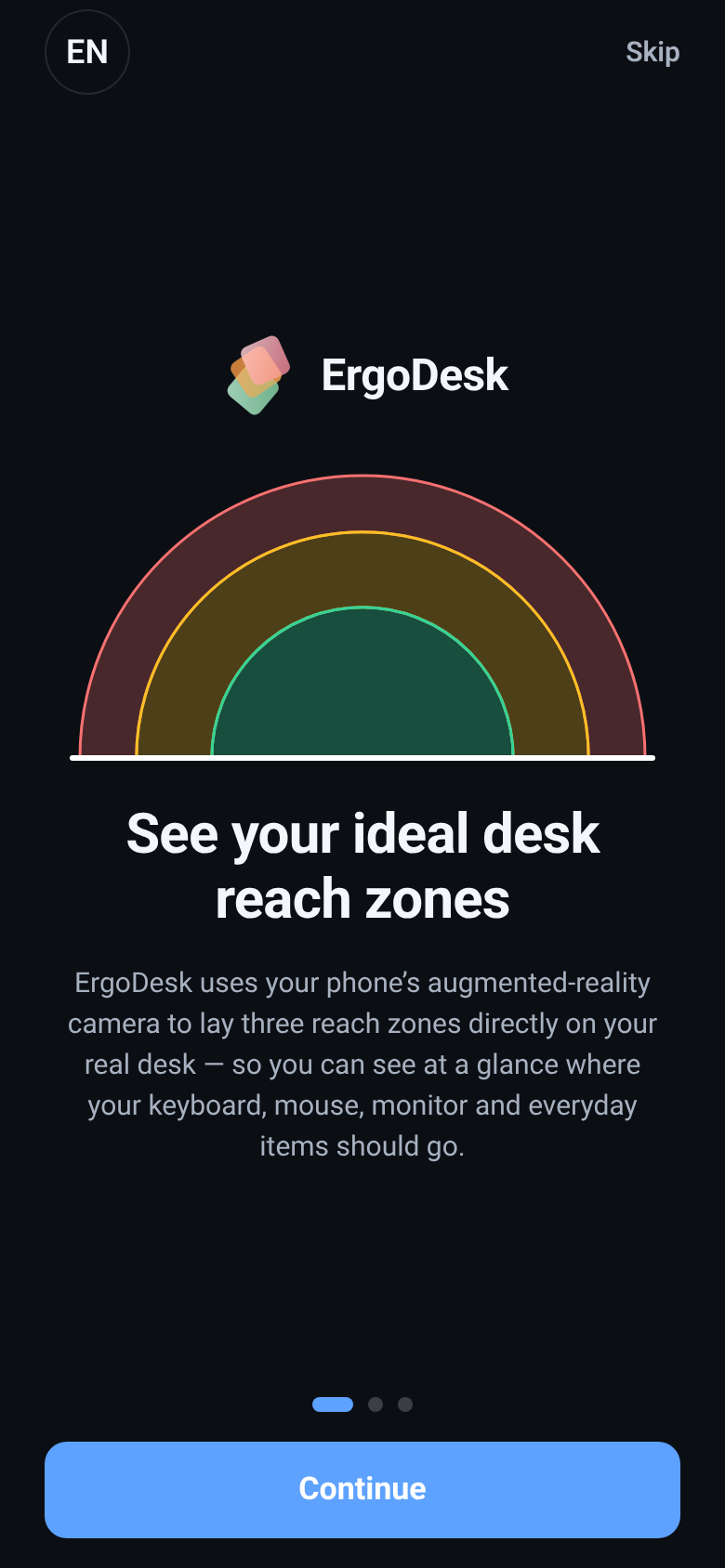
ErgoDesk uses your phone's camera to find your real desk and lays three reach zones on it, so you can see at a glance where your keyboard, mouse, phone and monitor belong.
For iPhone and iPad with ARKit, and Android phones that support ARCore.
Why ErgoDesk
A desk layout you can see, not guess
Most desk advice is a diagram in a PDF. ErgoDesk puts the same guidance on your own desk, at real-world scale, while you move things around.
On your real desk
Native ARKit and ARCore plane detection anchors the zones to the surface, so they stay put as you walk around or tilt the phone. The zones come from on-device AR tracking, with no image generation.
Based on recognised guidance
Zone distances draw on OSHA's Computer Workstations eTool, ISO 9241-5 and ANSI/HFES 100.
Private by design
No account, no sign-in, no ads and no analytics. The camera feed stays on your device and is never recorded or uploaded.
Reach zones
Three colour-coded zones, sized in real centimetres
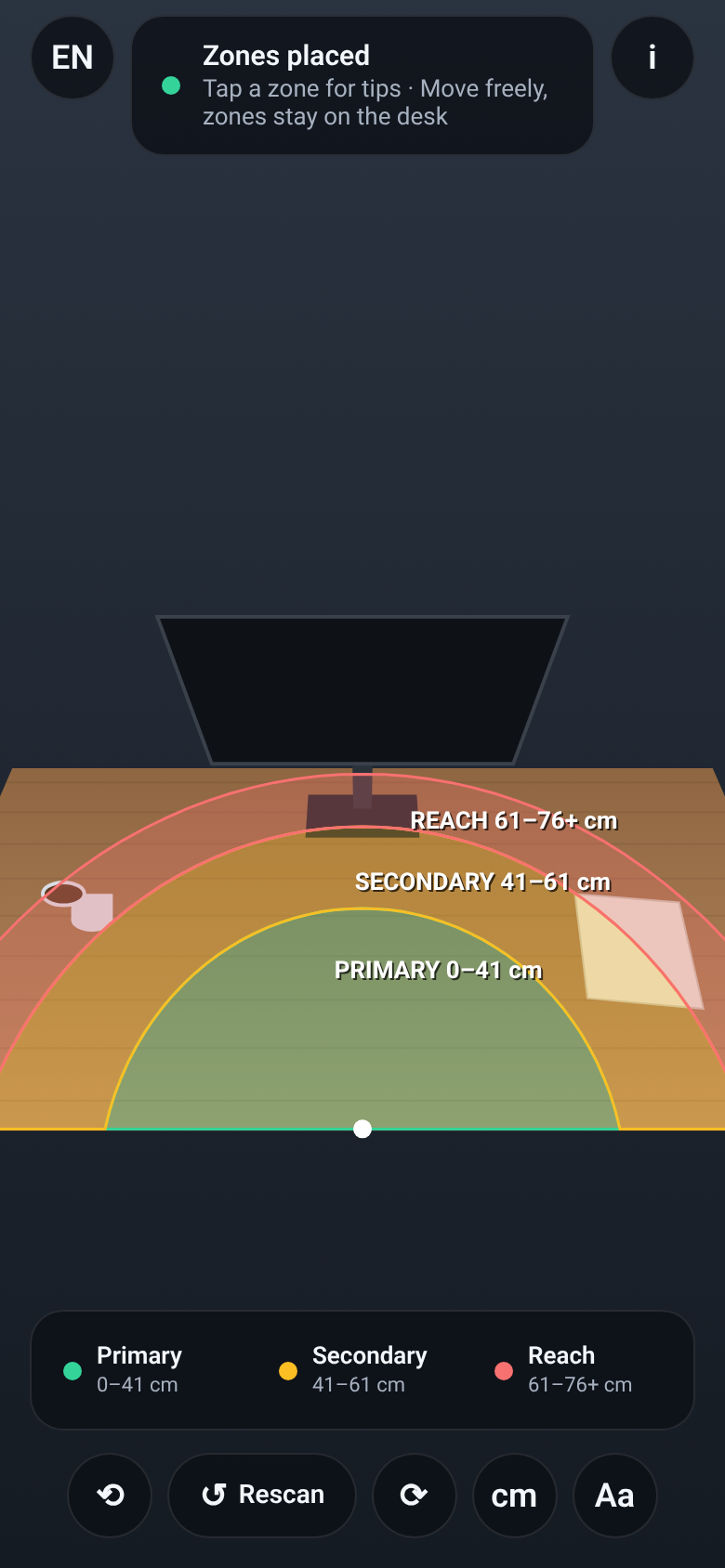
Tap the front edge of your desk and ErgoDesk draws three half-rings that open away from you across the surface.
- Green primary zone for what you touch many times an hour
- Amber secondary zone for occasional items
- Red reach zone for things you rarely need
- Labels show each zone's distance from the desk edge
Placement tips
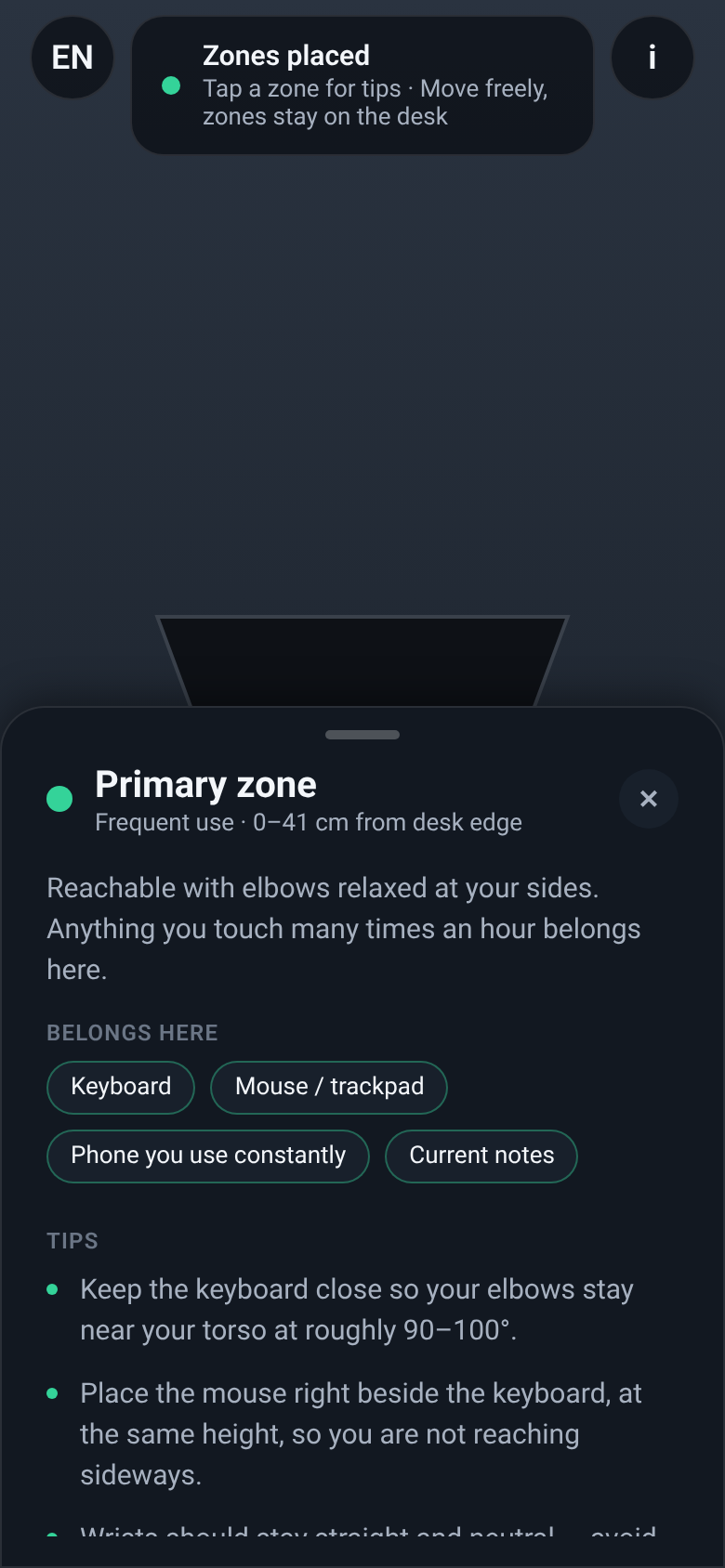
Tap any zone to see what belongs there
Each zone opens a short sheet with examples and practical tips, from keeping your elbows close while typing to where the monitor base should sit.
- Examples of items for every zone
- Tips you can act on straight away
- A full ergonomic guide one tap away
Fine-tune
Adjust the overlay to fit how you sit
Simple controls keep you in charge of the view.
- Rotate the zones left or right in small steps
- Switch between centimetres and inches
- Hide or show the labels
- Rescan to start over on a different spot or desk
- Works in portrait and landscape
Ergonomic guide
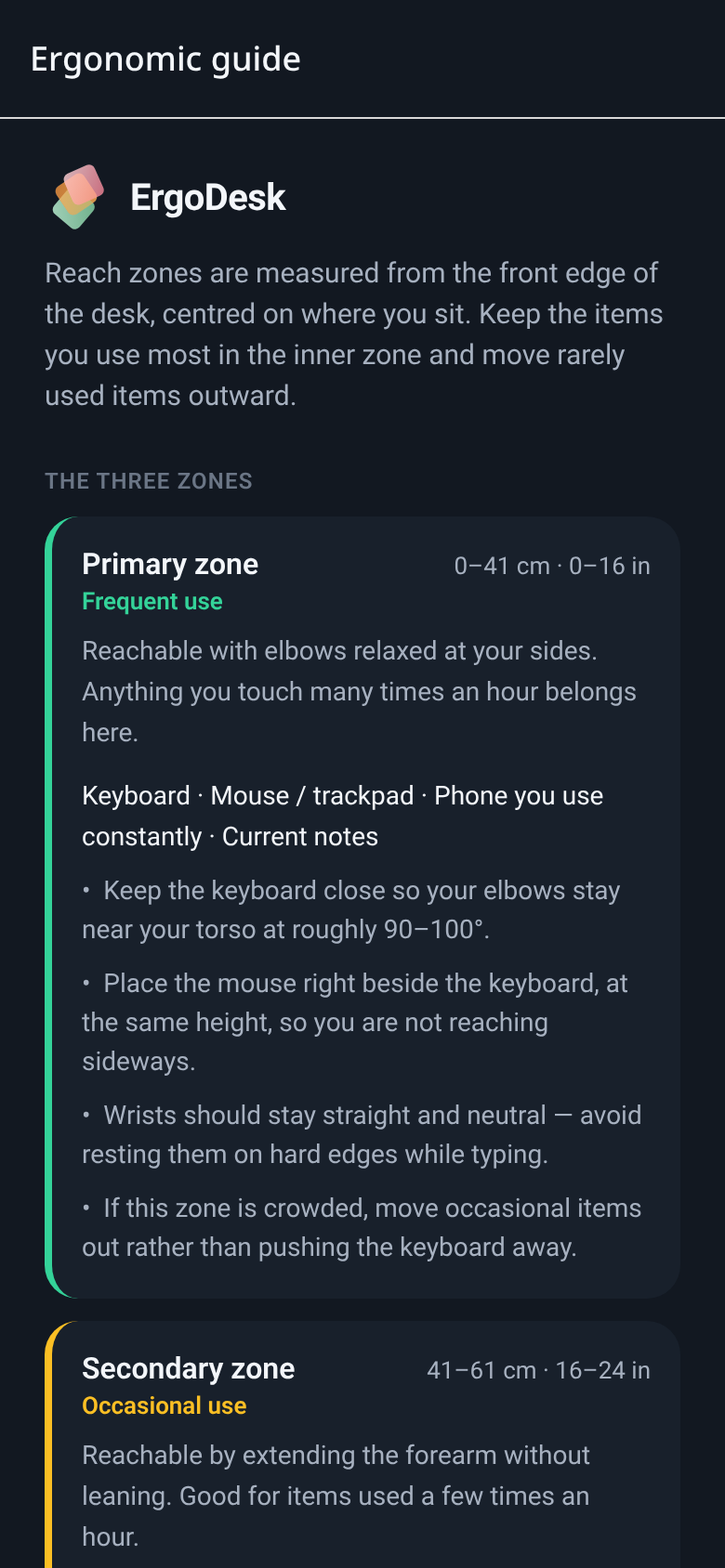
The reasoning behind every zone
A built-in guide explains the three zones, general workstation tips and the standards the distances come from, so you know why something goes where it does.
How it works
Set up in under a minute
- Sit in your normal working position. The zones are measured from where you sit.
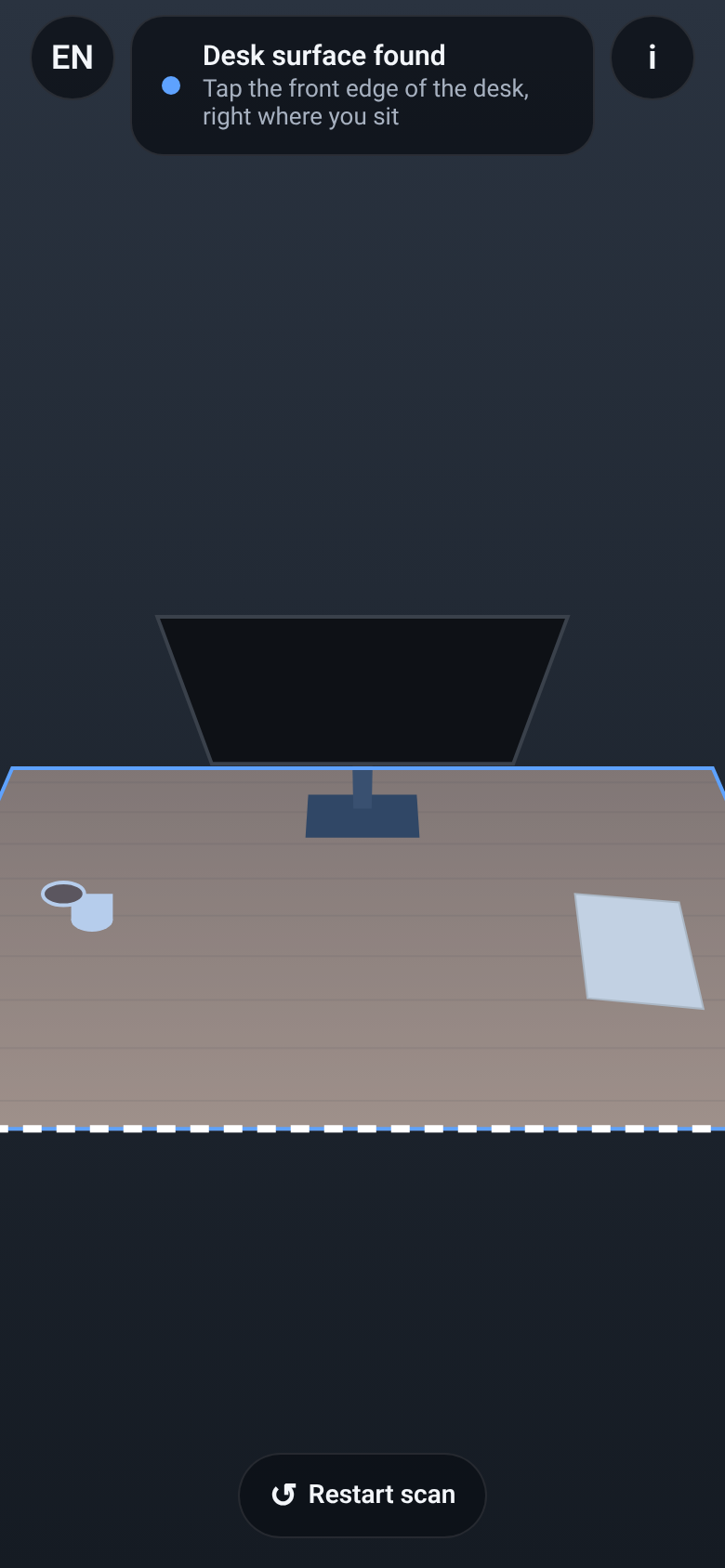
- Point the camera at the desk. Move the phone slowly until the surface is tinted blue.
- Tap the front edge of the desk directly in front of you. The zones appear there.
- Move around freely. The zones stay locked to the desk while you rearrange things.
- Tap a zone for tips, and use rotate, units, labels or rescan to fine-tune.
- Good tracking tips: bright, even light and a desk with some visible texture work best. Placement is approximate, so check critical distances with a tape measure.
The zones
What goes where
Distances are measured horizontally from the front edge of the desk, in line with the centre of your body.
| Zone | Distance from desk edge | Use |
|---|---|---|
| Primary | 0 to 41 cm (0 to 16 in) | Frequent: keyboard, mouse |
| Secondary | 41 to 61 cm (16 to 24 in) | Occasional: phone, notepad, drink |
| Reach | 61 to 76+ cm (24 to 30+ in) | Rare: monitor base, printer, references |
Guidance draws on OSHA's Computer Workstations eTool, ISO 9241-5 and ANSI/HFES 100. ErgoDesk is a visual planning aid, not a medical assessment.
DISCLAIMERZone placement is approximate. Accuracy depends on your device’s AR tracking, the lighting, the desk surface and where you tap the desk edge, so positions may vary by a few centimetres. ErgoDesk is a visual planning aid, not a measuring tool or a medical assessment. Check critical distances with a tape measure.
Screens
A look inside
App screens, shown here on a simulated desk.
Download
ErgoDesk is coming soon to the App Store
Questions or feedback in the meantime? Write to us.